1. Introduction and Overview
Your Python Platform for Physics Research
This JupyterHub service provides a ready-to-use environment for:
- 📊 Experimental data analysis (Pandas/Matplotlib)
- 🧮 Symbolic mathematics (SymPy)
- ⚛️ Numerical simulations (NumPy/SciPy)
Accessible from any browser, with:
- ✅ MATLAB-like syntax
- ✅ Mathematica-style interactive notebooks and symbolic workflow
- ✅ Pre-configured Python environments
- ✅ Secure on-premise hosting in LP50
Note: This is currently a pilot program aimed at providing computational resources to researchers and their collaborators. If successful, it can be upscaled in order to support additonal users.
📚 Start with tutorials: work/tutorials/processing_experimental_data.ipynb (experimental) or work/tutorials/sympy_intro (theoretical).
2. Getting Started
2.1 Accessing JupyterHub
To access the JupyterHub instance:
- Navigate to jupyter.sequanium.de in your browser
- You'll be presented with a login screen where you can authenticate using your GitHub account
Accessibility: The system is accessible from anywhere with an internet connection. No VPN account is required.
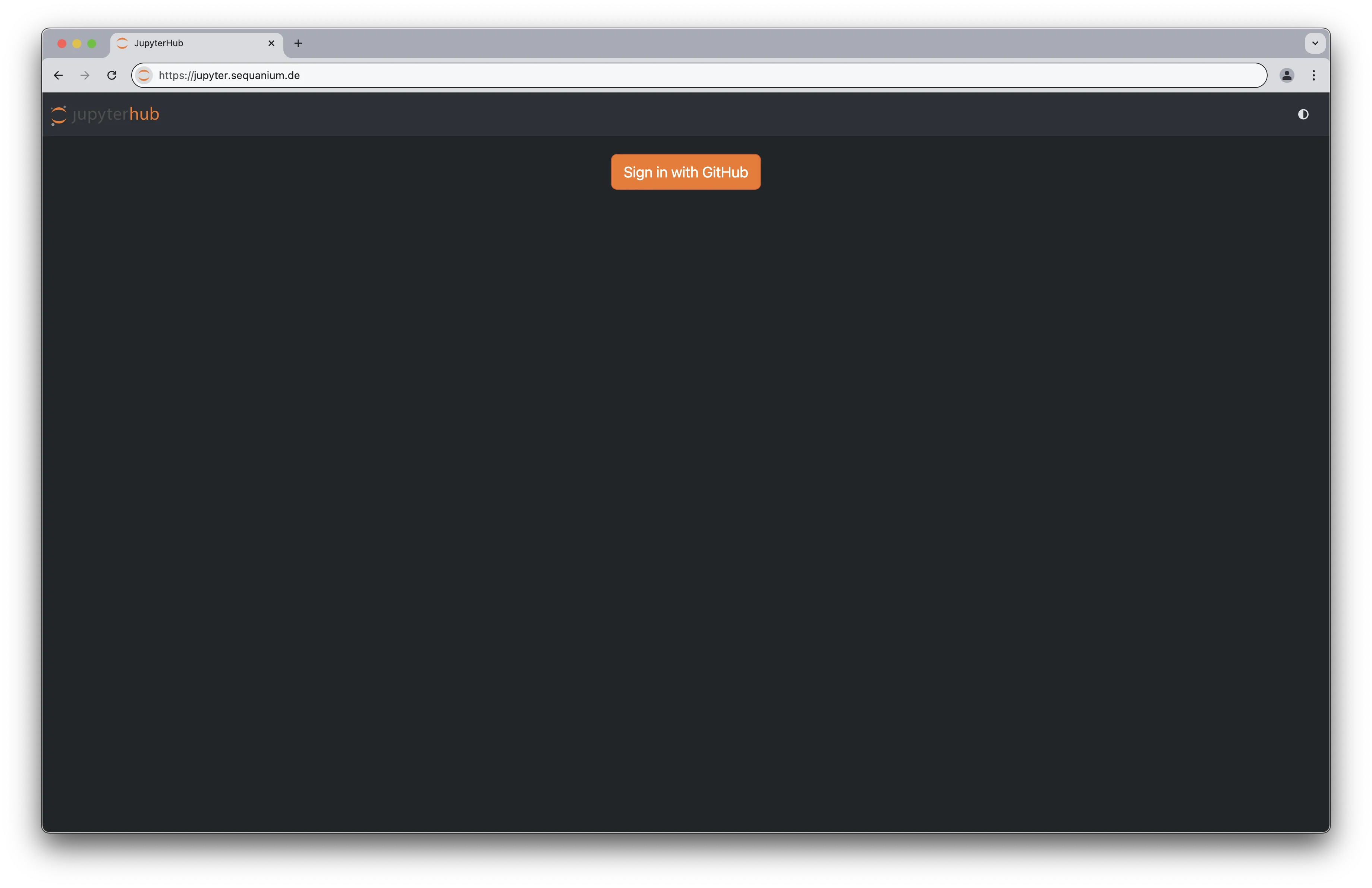
2.2 Authentication with GitHub
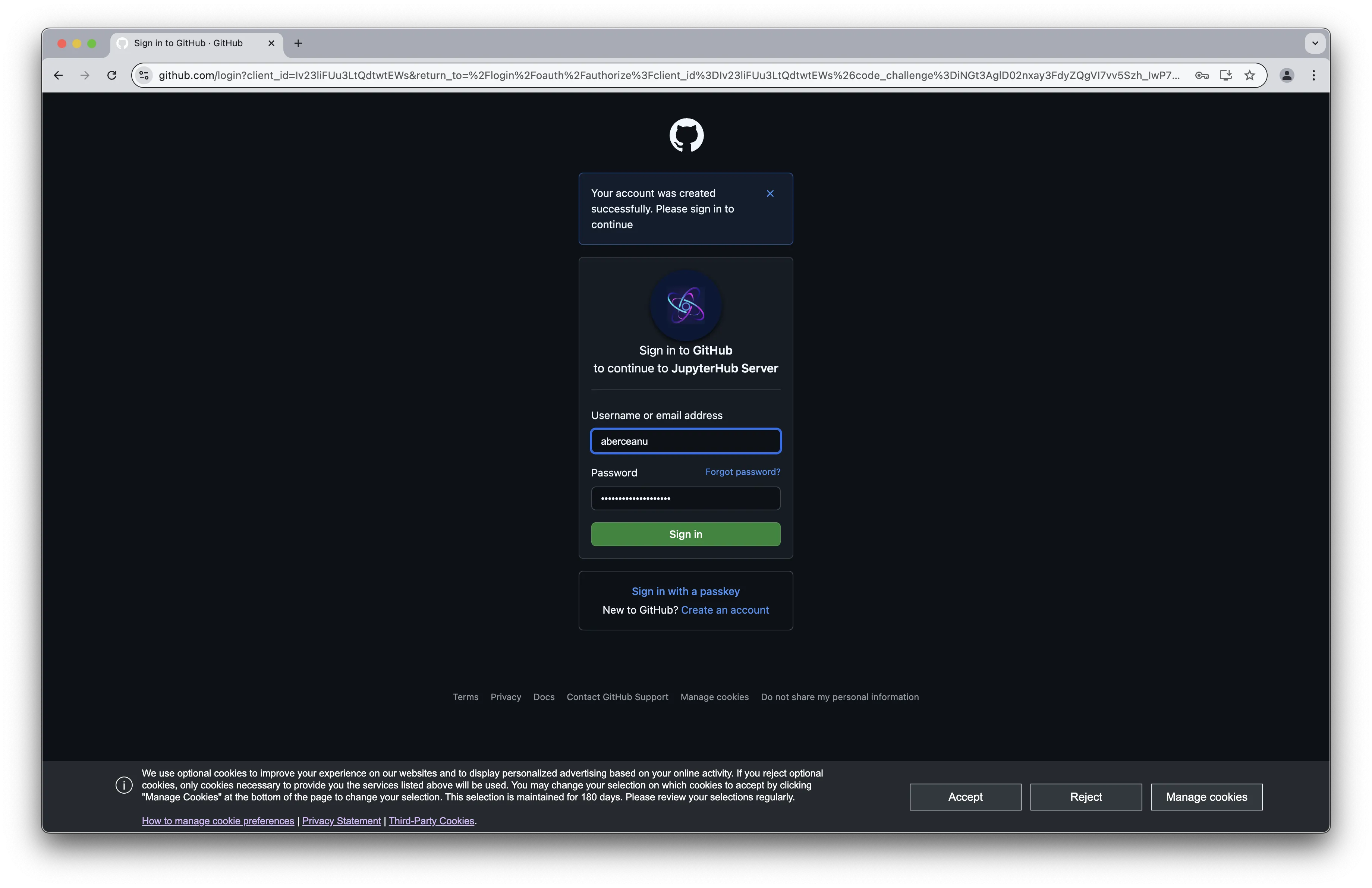
All users authenticate through GitHub accounts. If you already have a GitHub account, you can use it directly. If not, you'll need to create one.
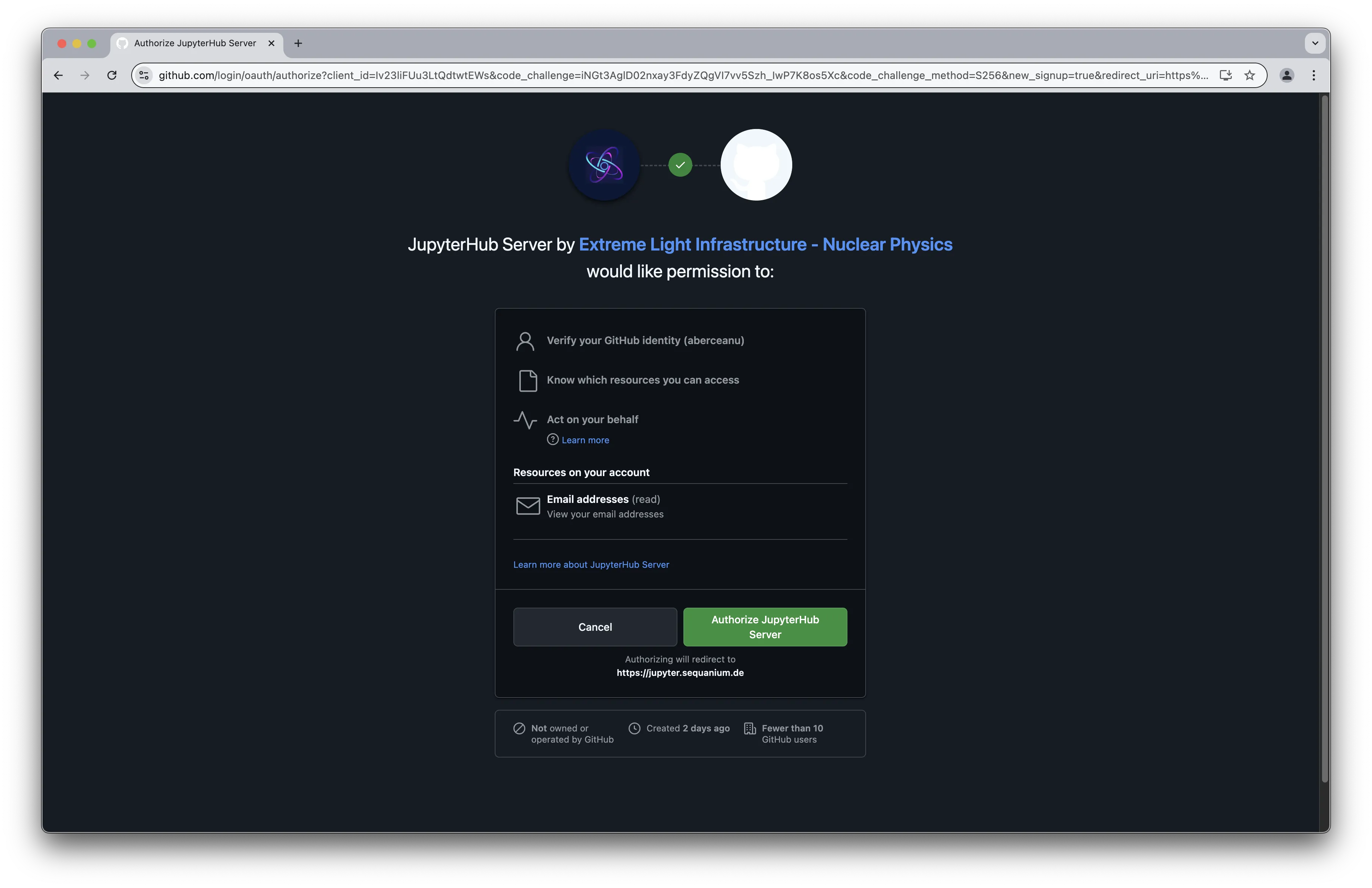
For Existing GitHub Users:
- Click the "Sign in with GitHub" button
- Enter your GitHub username/email and password
- Authorize JupyterHub to link to your GitHub account
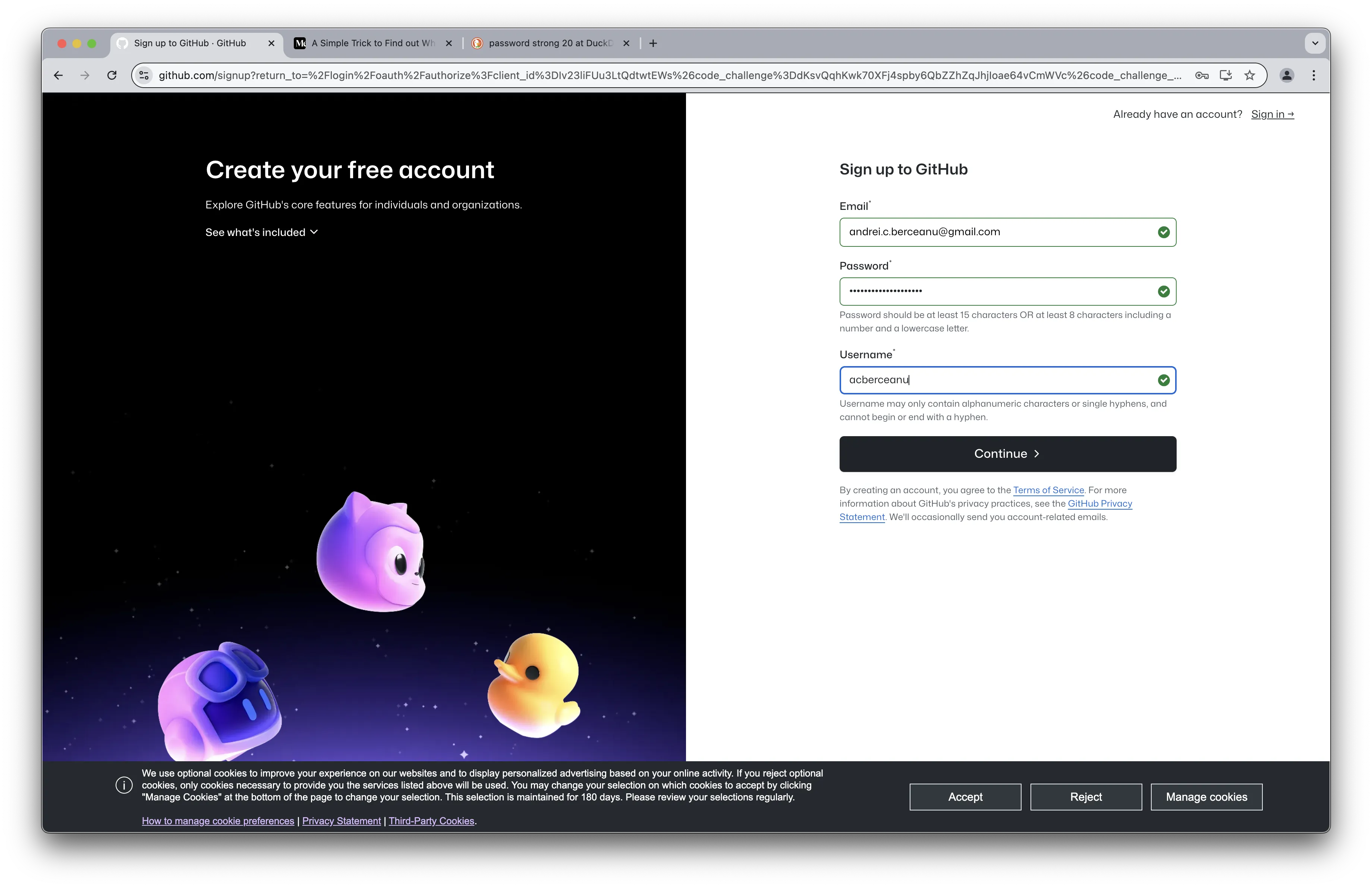
For New Users (Creating a GitHub Account):
- Click "Create an account" link
- Fill in the required information (email, password, username)
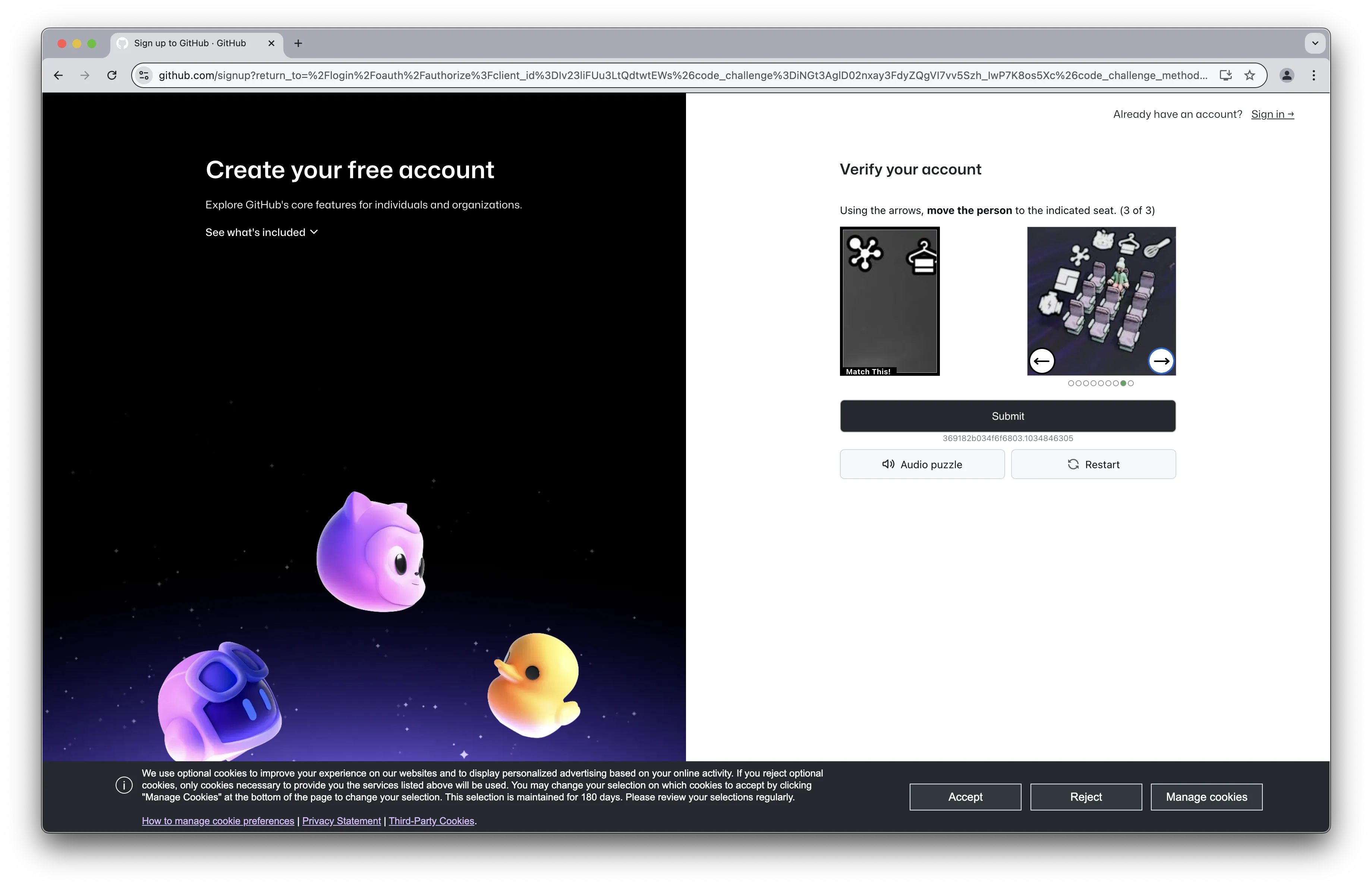
- Complete the human verification step
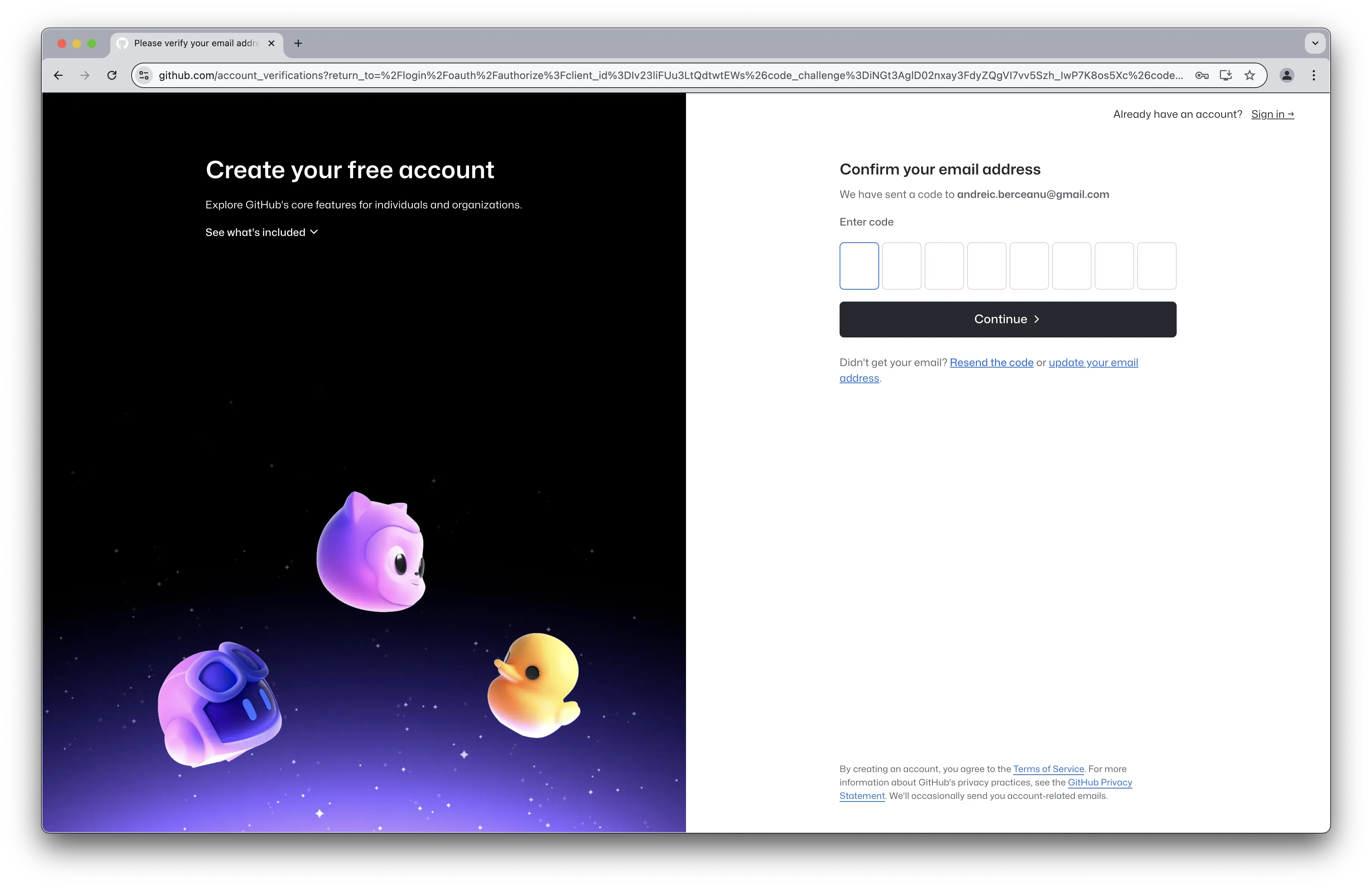
- Verify your email through the confirmation code sent by GitHub
- Authorize JupyterHub to access your newly created GitHub account
Note: You can optionally join ELI-NP's GitHub organization from your GitHub account. It is also recommended to activate GitHub's two-factor authentication (2FA).
3. JupyterLab Interface
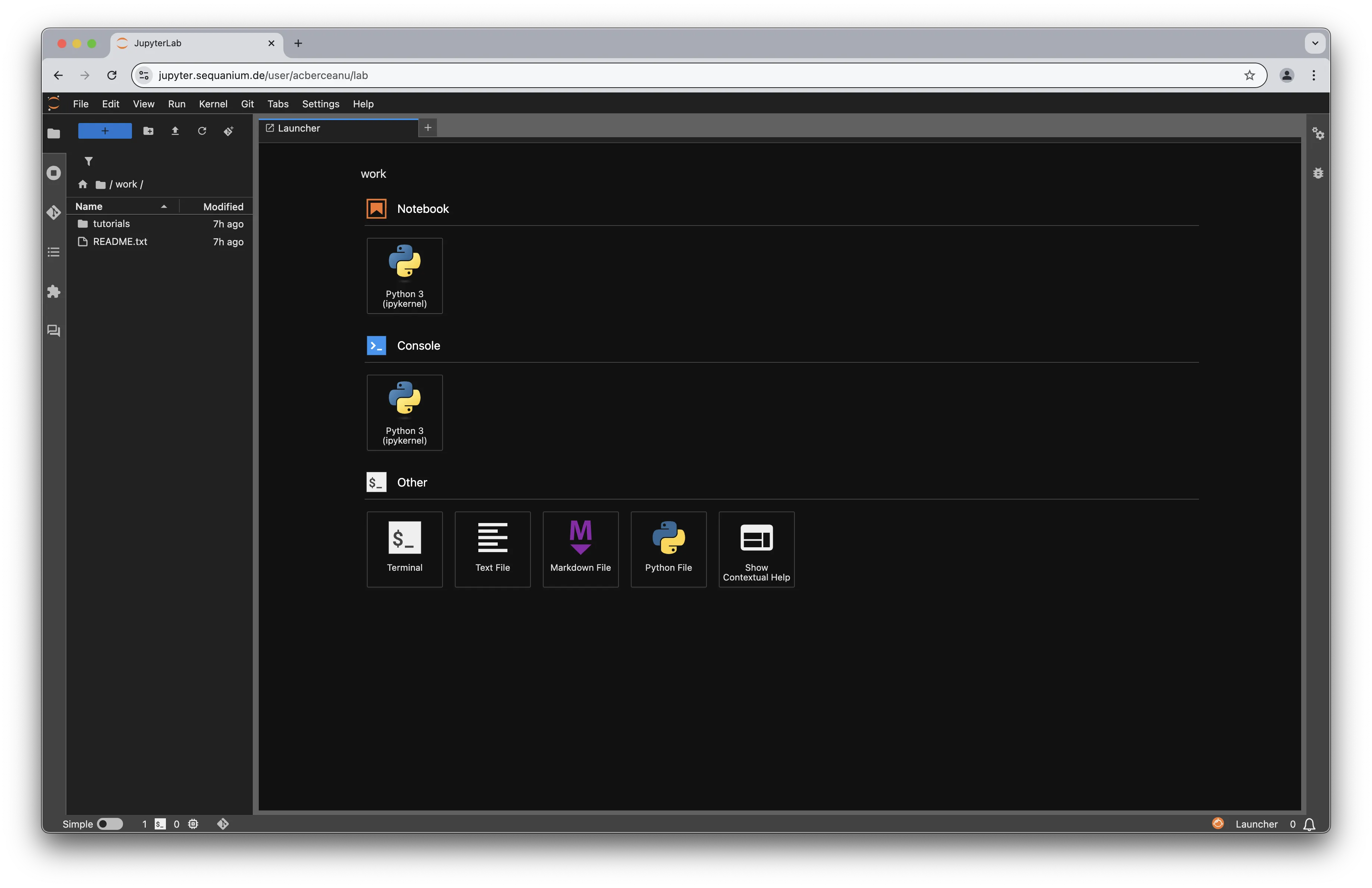
After authentication, you'll be directed to the JupyterLab interface, which is a web-based interactive development environment for Jupyter notebooks, code, and data.
3.1 File Browser and Terminal
The left sidebar contains the file browser showing your directories. You can navigate through your files and folders, and create new notebooks, text files, or other documents.
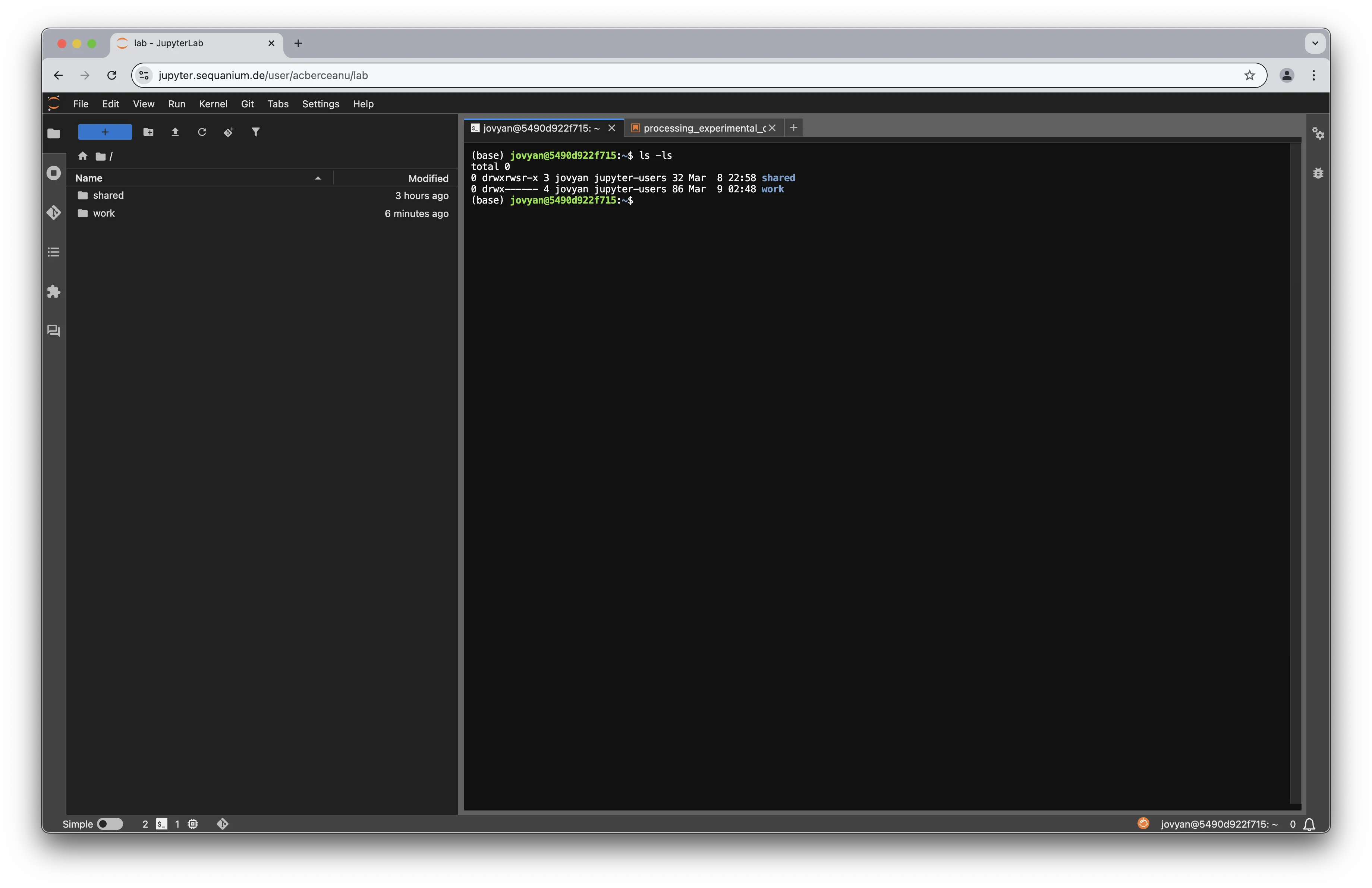
The terminal provides command-line access to your container environment, which is running a scaled-down Ubuntu Linux distribution:
3.2 File Management
JupyterLab provides tools for uploading and downloading files from/to your computer:
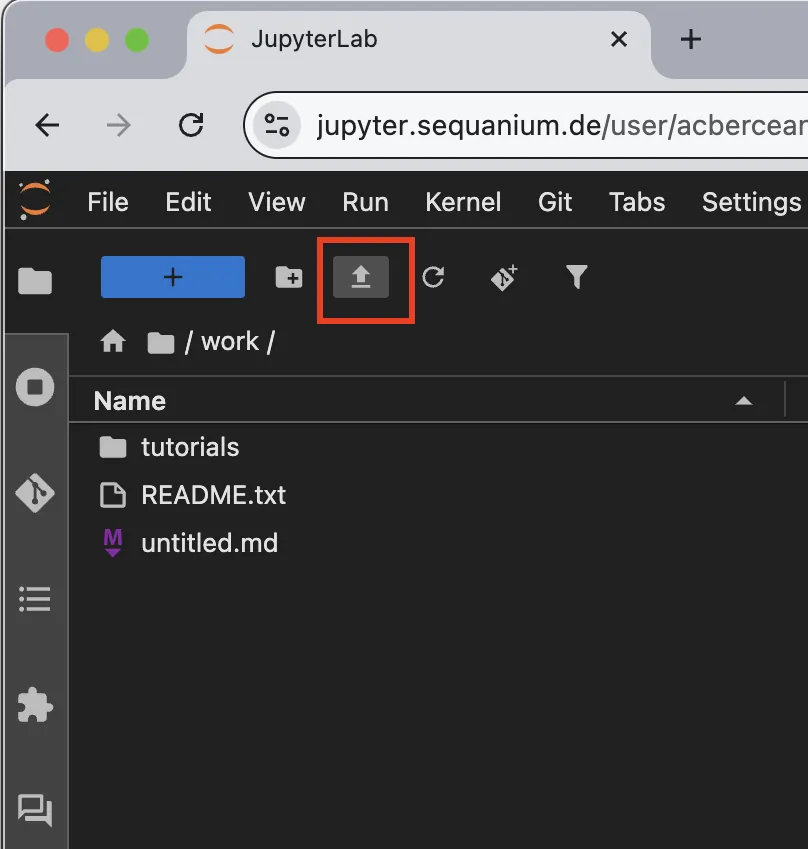
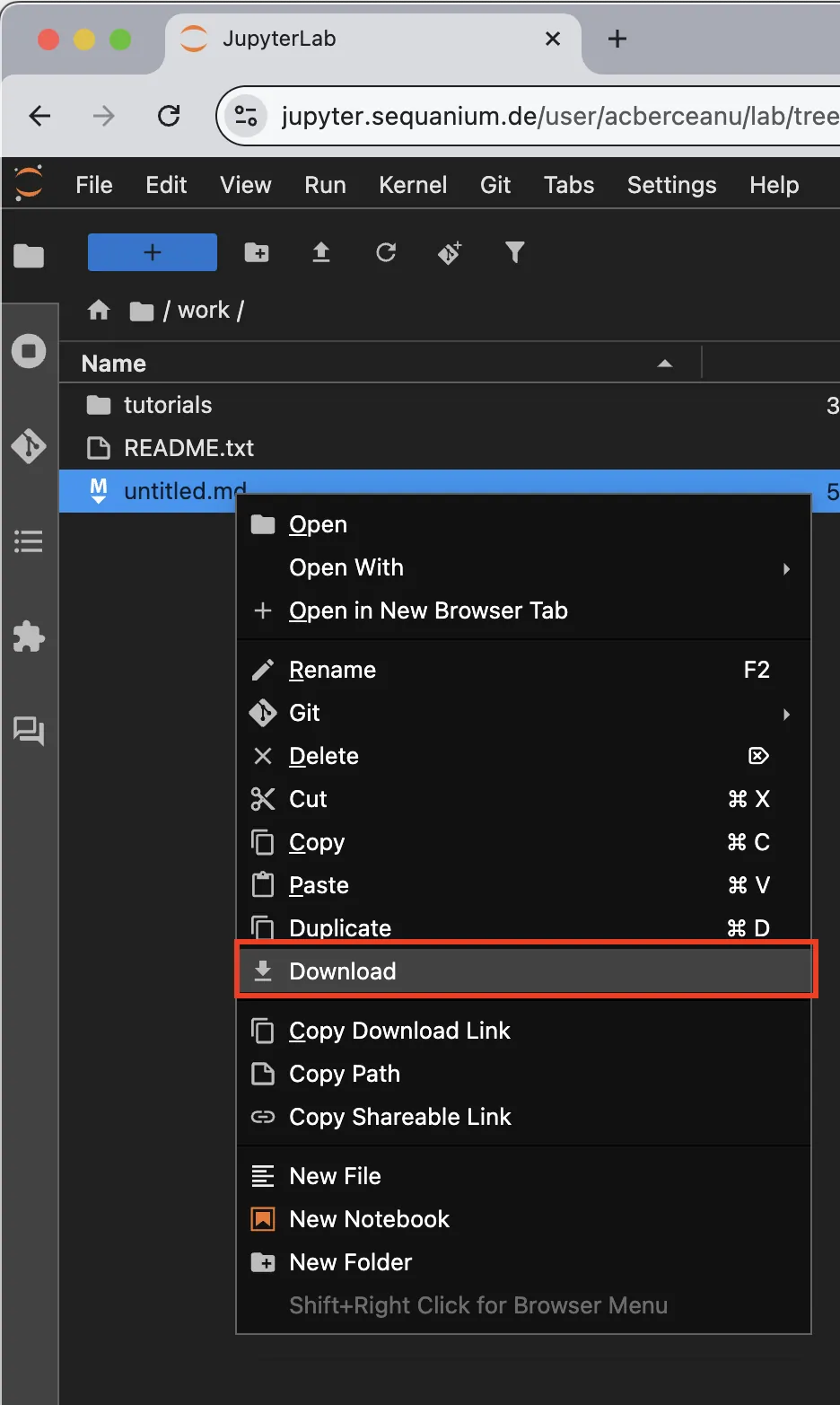
4. Storage and Data Management
4.1 Work Directory
Each user has a personal work/ directory with the following characteristics:
- Quota: 50GB of storage
- Privacy: Files stored here are accessible only to you
- Persistence: Data remains available between sessions
- Purpose: Store personal datasets, scripts, notebooks, and other private work
A README.txt file in your work directory provides additional information about available tutorials and resource usage.
4.2 Shared Directory
The shared/ directory is designed for collaboration:
- Quota: 500GB of shared storage
- Access: Accessible to all JupyterHub users
- Purpose: Collaboration on datasets, code, and results
Data Safety: All user data is regularly backed up to protect against data loss.
5. Computing Environment
The JupyterHub instance uses containerization to provide each user with their own isolated computing environment:
- Each user gets a personal Docker container based on the scipy-notebook image
- The container includes a full Ubuntu environment
- Pre-installed Python scientific stack includes:
- NumPy, SciPy, Pandas
- Matplotlib, Seaborn
- scikit-learn, scikit-image
- Jupyter extensions including ipywidgets and ipympl
5.1 Package Management
You can install additional Python packages using mamba or pip, but these installations are not persistent and will be lost when your container restarts.
Important: If you need specific packages added to the base image, please contact the administrators with your request.
5.2 Interactive Visualizations
The environment supports interactive visualizations through:
ipymplfor interactive Matplotlib figuresipywidgetsfor building interactive dashboards
6. Tutorials and Learning Resources
Several tutorials are available in the work/tutorials/ directory:
6.1 Available Tutorials
- Data Processing:
- Processing Experimental Data:
tutorials/processing_experimental_data.ipynb
- Processing Experimental Data:
- Python and NumPy Basics:
- Python Introduction:
tutorials/python_intro/python_intro.ipynb - NumPy Introduction:
tutorials/numpy_intro/numpy_intro.ipynb
- Python Introduction:
6.2 External Documentation
Additional learning resources:
7. Technical Information
7.1 Server Architecture
The JupyterHub setup includes:
- Bare metal Ubuntu 24.04 LTS server with public IP located in LP50
- Nginx reverse proxy for secure HTTPS access
- JupyterHub using DockerSpawner to launch individual user containers
- scipy-notebook Docker image as the base environment

7.2 Local Container Usage
Advanced users can run the same container locally on their own computers:
docker pull jupyter/scipy-notebook
docker run -p 8888:8888 jupyter/scipy-notebook
This allows for development and testing in an identical environment to the JupyterHub server.
8. Limitations and Constraints
Please be aware of the following system limitations:
8.1 Resource Limitations
- Job Duration: Maximum 24-hour runtime for continuous jobs
- Inactivity Timeout: Automatic logout after 1 hour of inactivity
- Storage Quotas:
- 50GB quota for personal
work/directory - 500GB quota for
shared/directory
- 50GB quota for personal
- Computational Resources (per user):
- Memory limit: 8GB
- Memory guarantee: 4GB
- CPU limit: 4 cores
- CPU guarantee: 2 cores
8.2 System Constraints
- Sudo Access: Not permitted for security reasons
- Package Persistence: Custom-installed packages do not persist between container restarts
- Environment: The base container is immutable; changes to the system environment are not preserved
Note: The resource limitations and system constraints can be adjusted on a per-user basis for specialized research requirements. If your work demands additional resources (memory, CPU, storage) or specific software configurations, please contact the system administrators with details about your needs and research justification.
9. Frequently Asked Questions
Python has become the lingua franca of data science and scientific computing due to its simplicity, versatility, and a rich ecosystem of libraries. Its readable syntax makes it accessible to scientists who may not have formal programming training, while its powerful libraries like NumPy, SciPy, and Pandas provide high-performance tools for numerical computation. Python's widespread adoption in both academia and industry has created a vast community that develops and maintains specialized tools for physics, astronomy, bioinformatics, and other scientific domains.
The JupyterHub environment offers several advantages over a local Python installation:
- 100% reproducibility: Every user works in an identical environment, eliminating "works on my machine" issues
- Pre-installed scientific libraries: All necessary tools are already set up and optimized
- Collaboration: Easily share notebooks and results with colleagues through the shared folder
- No maintenance burden: No need to manage package updates or resolve dependency conflicts
- Future scalability: Potential access to on-premise CPU/GPU clusters that can be managed from JupyterLab for scaling up computationally intensive tasks
- Customization flexibility: Different Docker containers can be created for specific user needs without worrying about conflicting packages
GitHub is used solely for authentication purposes, providing a secure and standardized way to manage user access. No code or data from your JupyterHub work is sent to GitHub—only the email address you used during GitHub registration is utilized for identification. This approach eliminates the need to create and remember another set of credentials while leveraging GitHub's robust security infrastructure. Your GitHub account is simply the "key" that unlocks your JupyterHub environment. Users are strongly advised to use GitHub's two-factor authentication (2FA) option.
While the domain (sequanium.de) is registered in Germany primarily for cost-effectiveness, all services and data remain fully hosted on-premise at ELI-NP in Romania. The domain name is simply a "signpost" that directs your browser to the correct server's IP address. No data traverses or is stored in Germany—the domain registration is merely an administrative detail. All computation, storage, and processing happen locally on our servers at ELI-NP, ensuring complete data sovereignty and compliance with institutional requirements.
Your privacy is a priority in our JupyterHub environment. All files stored in your work/ folder are completely private and protected. Neither other users nor JupyerHub administrators have direct access to these files.
We understand that many users have strong IDE preferences. VSCode can be made available in your JupyterHub environment through code-server, which runs VSCode in the browser. This provides the full VSCode experience, including extensions, integrated terminal, and debugging capabilities, while maintaining all the benefits of the managed JupyterHub environment. Please contact the administrators to request VSCode/code-server installation in your Docker container. This approach gives you the best of both worlds: your preferred development environment with the infrastructure advantages of the JupyterHub setup.
Contact the system administrators with details about the package, its purpose, and any specific version requirements. If approved, it will be added to the base Docker image.
Yes, the JupyterHub is accessible from anywhere with an internet connection. No VPN is required.
Yes, user data is regularly backed up to protect against data loss.
After the trial period, the service may move to an eli-np.ro subdomain. Users will be notified well in advance of any changes.